Set Up Captcha & Custom Messages
This step-by-step guide will walk you through configuring captcha and custom messages in the Goxy Dashboard. Customize the captcha image used during verification and edit message templates shown to players during login, registration, or server switching. Ready to personalize player communication?
Customize captcha and messages in minutes to give your network a unique identity!
Before You Begin
In this section, you'll configure the captcha image used during registration and message templates displayed in various situations (e.g., login, registration, server change). You can use Goxy's default image or upload your own, and customize messages in Polish or English.
The captcha image is shown during registration to verify the player isn't a bot. Use Goxy's default or upload your own - compliant with requirements.
Configuring Captcha & Messages
Step 1: Go to Additional Settings
- In the Goxy Dashboard, go to your network settings.
- Select Additional Settings, then the Custom Messages tab.
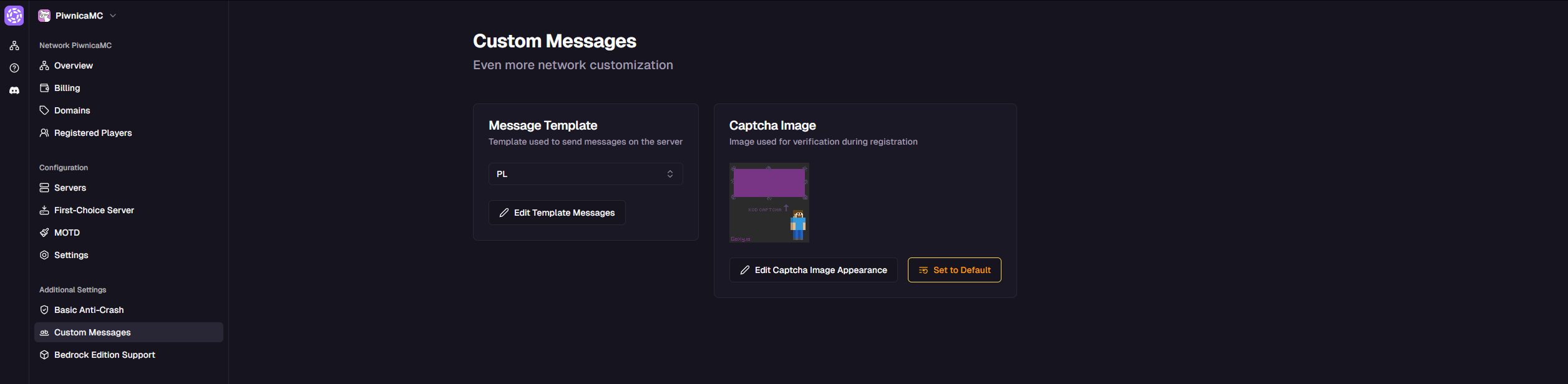
- You'll see two main cards: Captcha Image and Message Template.
Step 2: Configure Captcha Image
- In the
Captcha Imagecard, choose Goxy's default image or upload your own.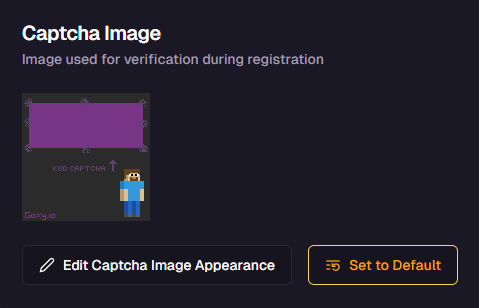
- If uploading your own, ensure it meets the requirements:
⚠️Important: Captcha Image Requirements
The image must be 128x128 pixels and weigh no more than 512 KB.
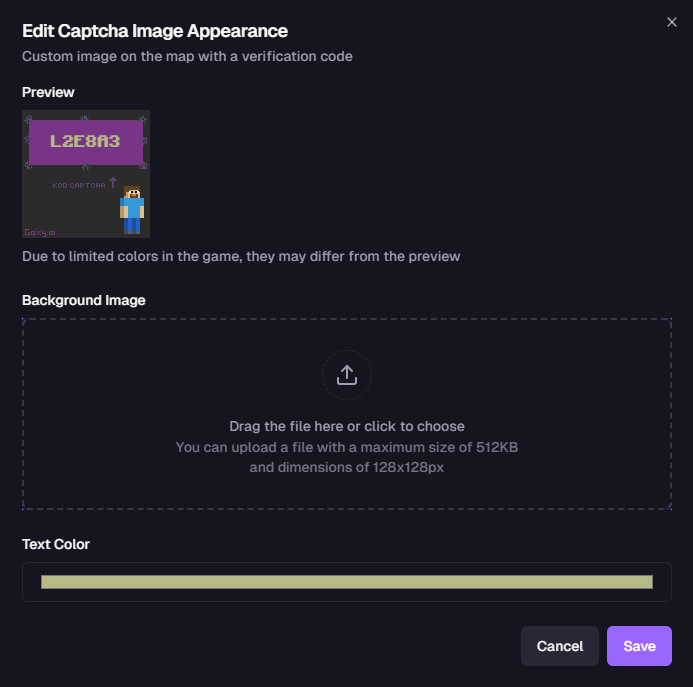
- (Optional) Set the text color displayed on the captcha (e.g., white, black, or Minecraft color code like
&a). - Click the Save button.
Your captcha image is ready for use in the verification process!
Step 3: Edit Message Templates
- In the
Message Templatecard, select the language: PL (Polish) or EN (English).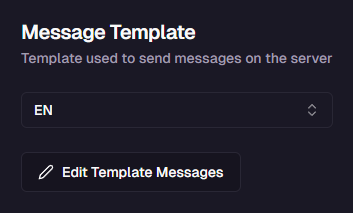
- Edit messages in the categories below using Minecraft color codes (e.g.,
&a) and placeholders (e.g.,{ticks},{position}). - Available messages to edit:
Join Queue
| Message | Description |
|---|---|
&aConnection attempt | Header shown during server connection attempt. |
&7Connecting in &9{ticks} &7seconds | Countdown to connection attempt. |
&aConnecting... | Message during active connection attempt. |
&7You are currently &9{position} &7in queue | Shows player's position in the queue. |
Login - General
| Message | Description |
|---|---|
&cLog in using: /login <password> | Prompt to log in with password. |
&cYou must wait {cooldown} before using this command again | Cooldown message after command use. |
&cPassword must be between {min_length} and {max_length} characters | Invalid password length message. |
&cRegister using: /register <captcha> <password> <password> | Registration prompt. |
&cYou must be logged in to use this command | Requires login to use command. |
Login timeout exceeded. | Timeout after too long without logging in. |
Login - Registration
| Message | Description |
|---|---|
&aSuccessfully registered :) | Successful registration confirmation. |
&cUsage: /register <captcha> <password> <password> | Incorrect /register command usage. |
&cMore than {limit} accounts registered from your IP or another account registered from your IP in the last {delay} minutes. Contact the server admin if you believe this is an error. | IP registration limit warning. |
&cInvalid captcha code ({attempt}/{max_attempts}) | Wrong captcha code entered. |
&cAn error occurred during registration. Contact the server admin. | Internal registration error. |
&cMore than {limit} accounts registered from your IP. Contact the server admin if you believe this is an error. | Strict IP account limit. |
&cToo many failed registration attempts | Kick reason for excessive failed attempts. |
Login - Authentication
| Message | Description |
|---|---|
&aSuccessfully logged in :) | Login success message. |
&cNo password is set for your account. You can set one using /setpassword | No password set warning. |
&cUsage: /login <password> | Incorrect /login command usage. |
&cIncorrect password ({attempt}/{max_attempts}) | Wrong password entered. |
&aLogged in with premium account :) | Premium account auto-login. |
&aYou were automatically logged in from a session remembered within the last 24 hours. &aUse &6/logout to remove it. | Auto-login from remembered session. |
&cToo many failed login attempts | Kick reason for excessive failed logins. |
Login - Password Change
| Message | Description |
|---|---|
&aPassword changed successfully | Password change success. |
&cUsage: /changepassword <old password> <new password> <repeat new password> | Incorrect /changepassword command usage. |
&cIncorrect old password | Wrong old password entered. |
Login - Session Memory
| Message | Description |
|---|---|
&aYour session has been removed. You will need to log in next time you join. | Session removed confirmation. |
&aSession remembered. You will be auto-logged in from this IP for the next 24 hours. | Session saved confirmation. |
&aSession renewed. You will be auto-logged in from this IP for the next 24 hours. | Session refreshed. |
&aUse &6/logout to remove the remembered session. | How to remove saved session. |
Login - Set Password
| Message | Description |
|---|---|
&aPassword set successfully | Password set confirmation. |
&cA password is already set for your account. Use /changepassword to change it. | Password already exists. |
&aPassword removed successfully. You will now be auto-logged in. | Password removed. |
&cUsage: /setpassword <password> <repeat password> | Incorrect /setpassword usage. |
&cUsage: /deletepassword <current_password> | Correct /deletepassword usage. |
&cIncorrect password | Wrong password entered. |
Login - Notifications
| Message | Description |
|---|---|
&aTo be auto-logged in from this IP, use &6/remember | How to enable session memory. |
&5Did you know: &7With a Minecraft account, you can be auto-logged in? &7Disable password login with: &5/deletepassword | Premium account auto-login tip. |
&7The server admin has enforced password login for all players. &7Set your password with: &5/setpassword | Forced password login for all. |
&7The server admin has enforced password login for NON-PREMIUM players. &7Set your password with: &5/setpassword | Forced password for non-premium. |
Server Switching
| Message | Description |
|---|---|
&cServer with given ID not found | Server ID not found. |
&cDisconnected from &4{server}&c: {reason} | Chat disconnection message. |
&cCannot connect to &7{server}&c: {reason} | Chat connection error. |
&cDisconnected from &4{server}&c: {reason} | Disconnect screen message. |
&cCannot connect to &7{server}&c: {reason} | Disconnect screen connection error. |
&cAlready connecting to a server | Connection already in progress. |
Login Failure - Version
| Message | Description |
|---|---|
&cThe server currently supports no versions. | No versions configured. |
&cYour game version is not yet supported by the server. ({version}) | Client version not supported. |
&cThe server does not support this version. Recommended version: &7{version} | Unsupported version with suggestion. |
Login Failure - Other
| Message | Description |
|---|---|
&cYou are not on the whitelist :( | Not whitelisted. |
Server is full. Try again later. | Server full message. |
&cYou are already on the server! Try again in a moment. | Already online warning. |
- Click the Save button.
Your custom messages and captcha are ready to use in your network!
Security
Custom captcha protects your network from bots.
Personalization
Tailor messages to match your network's style.
Speed
Configure captcha and messages in just a few clicks!
Links
Contact us!
We respond to all messages within 24 hours on Discord.
Configure Captcha & Messages to Stand Out!
Join Goxy and deliver a unique player experience!
REGISTER FOR FREE