Manage Players
This step-by-step guide will walk you through managing players in the Goxy Dashboard. You can view the player list, search by name, add new players (e.g., test bots), edit profiles, and delete accounts. Ready to take full control of your network's community?
Manage players in just a few clicks to customize access and enhance network security!
Before You Begin
In this section, you can view player data, add new accounts (e.g., for bots or testing), edit profiles (name, password, priority, account status, anti-bot verification), and delete accounts. Note that deleting an account is irreversible.
Adding new players lets you create test accounts or bots. You can set the account status (Premium/Non-Premium) and password - leave blank to force the player to set one on first login.
Managing Players
Step 1: View the Player List
-
In the Goxy Dashboard, go to the
Network [Your Network Name]section.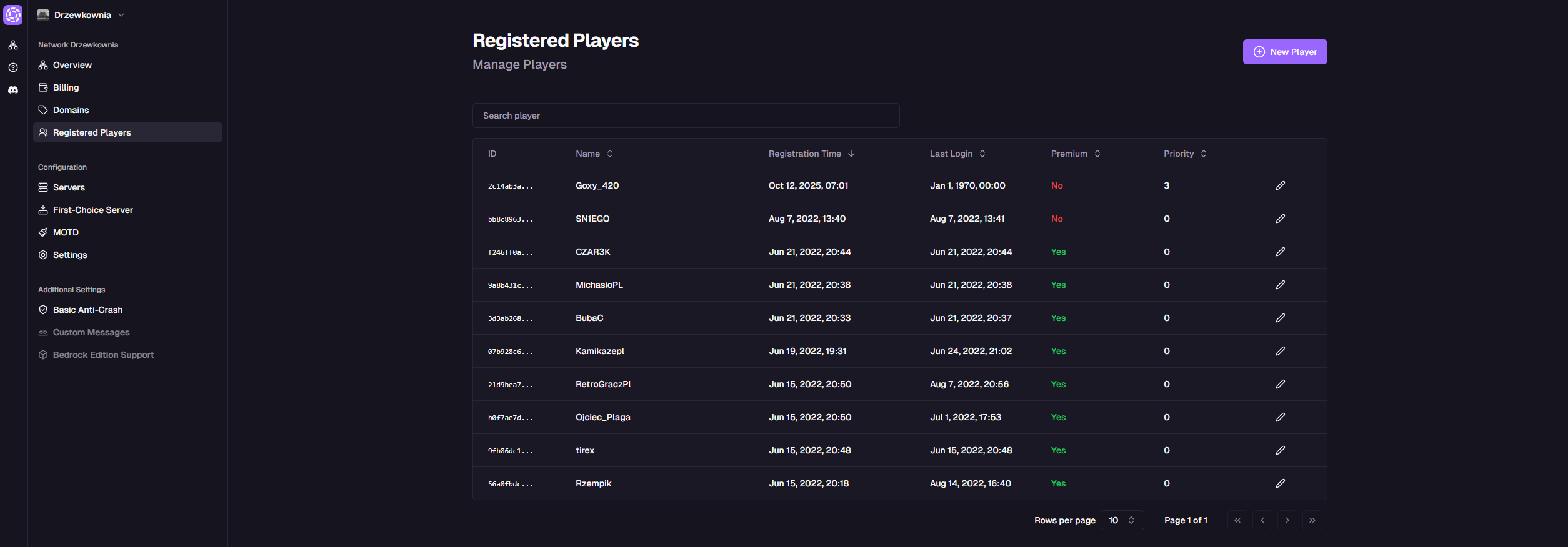
-
You'll see a table with the following player data:
ID Name Registration Time Last Login Premium Priority Edit ab12cd34... player1 Oct 11, 2025, 19:24 Oct 11, 2025, 19:24 Yes 0 pencil ef56gh78... player2_test Oct 11, 2025, 12:25 Oct 11, 2025, 12:25 No 0 pencil ij90kl12... kuba123 Oct 11, 2025, 11:16 Oct 11, 2025, 18:56 No 0 pencil mn34op56... poke_fan Oct 11, 2025, 05:56 Oct 11, 2025, 13:09 No 0 pencil qr78st90... gamer_x Oct 10, 2025, 18:10 Oct 10, 2025, 18:10 Yes 0 pencil uv12wx34... sinax Oct 10, 2025, 16:27 Oct 10, 2025, 16:27 No 0 pencil yz56ab78... elvis_g Oct 10, 2025, 16:25 Oct 10, 2025, 16:29 Yes 0 pencil cd90ef12... kastor Oct 10, 2025, 16:24 Oct 10, 2025, 16:24 No 0 pencil gh34ij56... radex_pl Oct 10, 2025, 12:53 Oct 10, 2025, 13:11 Yes 0 pencil kl78mn90... mokra_skarpeta Oct 8, 2025, 13:51 Oct 8, 2025, 13:55 No 0 pencil -
Use the search bar to find a player by name.
Step 2: Add a New Player
- Click the New Player button.
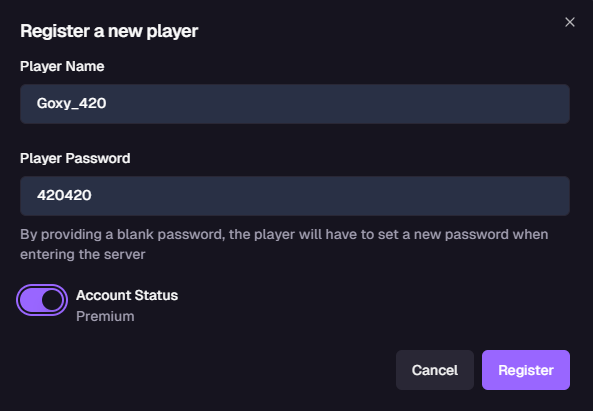
- Fill in the form:
- Player Name: Enter a name (e.g.,
test_player).⚠️Important: Player Name RequirementsPlayer name can only contain letters, numbers, and underscores (
_). - Player Password: Enter a password or leave blank to force the player to set one on first login.
- Account Status: Choose
PremiumorNon-Premium.⚠️Important: Premium Account RequirementsSetting an account to
Premiumrequires a valid Mojang-authenticated Minecraft account.
- Player Name: Enter a name (e.g.,
- Click Add.
ℹ️Use Cases
Adding players is useful for creating test accounts or bots for testing and automation.
The new player is registered and can now join your network!
Step 3: Edit or Delete a Player Profile
-
In the player table, click the pencil icon next to a player to open their details.
-
You'll see detailed information:
Field Example Goxy ID ab12cd34-5e67-4890-b123-4f5a6b7c8d9e Mojang ID eceb78af-d595-467e-86cb-2db2206e2b10 Name player1 Current IP 192.168.0.1 IP at Registration 192.168.0.1 Join Priority 0 Account Status Premium Anti-Bot Verification Enabled -
Available actions:
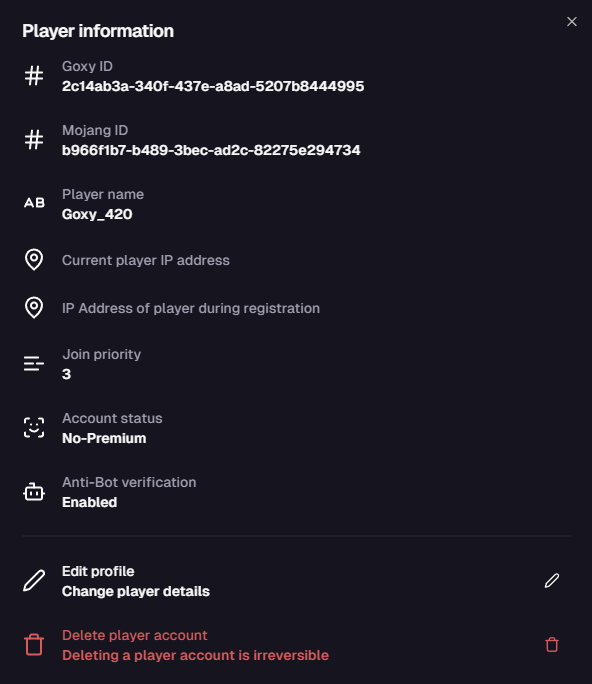
- Edit Profile: Click to modify player data.
- Delete Player Account: Click to permanently remove the account.
⚠️Important: Account Deletion
Deleting a player account is irreversible. Confirm before proceeding.
-
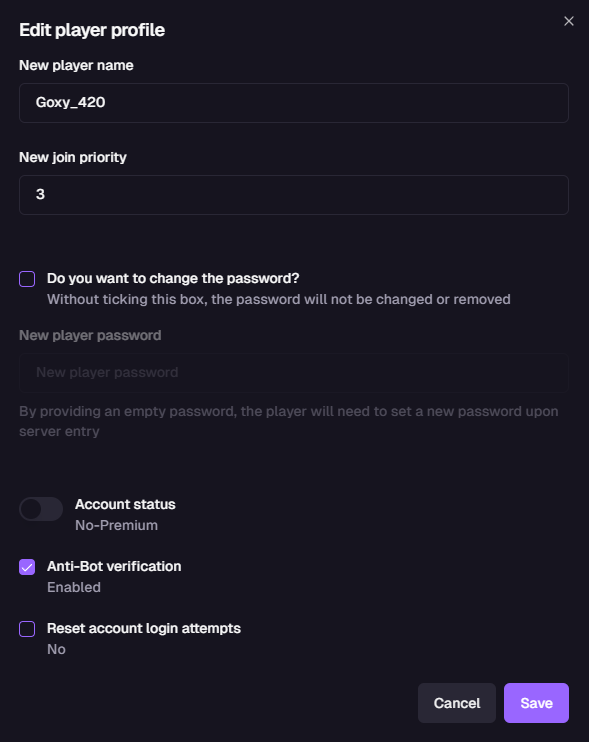
In the Edit Player Profile section:
- New Player Name: Change name (e.g.,
player1_nowy). - New Join Priority: Set priority (e.g.,
0). See Queue Settings for details. - Change Password? Check to update or reset password.
- Enter new password or leave blank to force player to set one on login.
- See Captcha Settings for password length rules.
- Account Status: Switch between
PremiumorNon-Premium. - Anti-Bot Verification: Enable/Disable.
- Reset Login Attempts: Check to clear failed login attempts (e.g., after hitting limit from Captcha Settings).
- New Player Name: Change name (e.g.,
-
Click Save.
Player data has been updated or account deleted as configured!
Security
Control player data and reset login attempts for enhanced security.
Flexibility
Edit profiles, change account status, and adjust join priority.
Testing
Add bots or test accounts to validate your network setup.
Links
Contact us!
We respond to all messages within 24 hours on Discord.
Manage Players & Build Your Community!
Join Goxy and take full control of your network!
REGISTER FOR FREE