Whitelist Configuration
This step-by-step guide will walk you through configuring the whitelist in the Goxy Dashboard. You can enable the whitelist, set a rejection message for unauthorized players, and manage the list of allowed players. Ready to control access to your network?
Enable the whitelist and add players in minutes to ensure security and order on your server!
Before You Begin
The whitelist restricts access to your network only to selected players. Once enabled, only players on the list can join. You can also set a rejection reason displayed to players trying to join without permission.
Adding a player to the Goxy Dashboard whitelist does NOT automatically add them to the target server's whitelist. You must configure the server whitelist separately if required.
Configuring the Whitelist
Step 1: Go to the Whitelist Section
- In the Goxy Dashboard, go to network settings.
- Select Configuration, then the Whitelist tab.
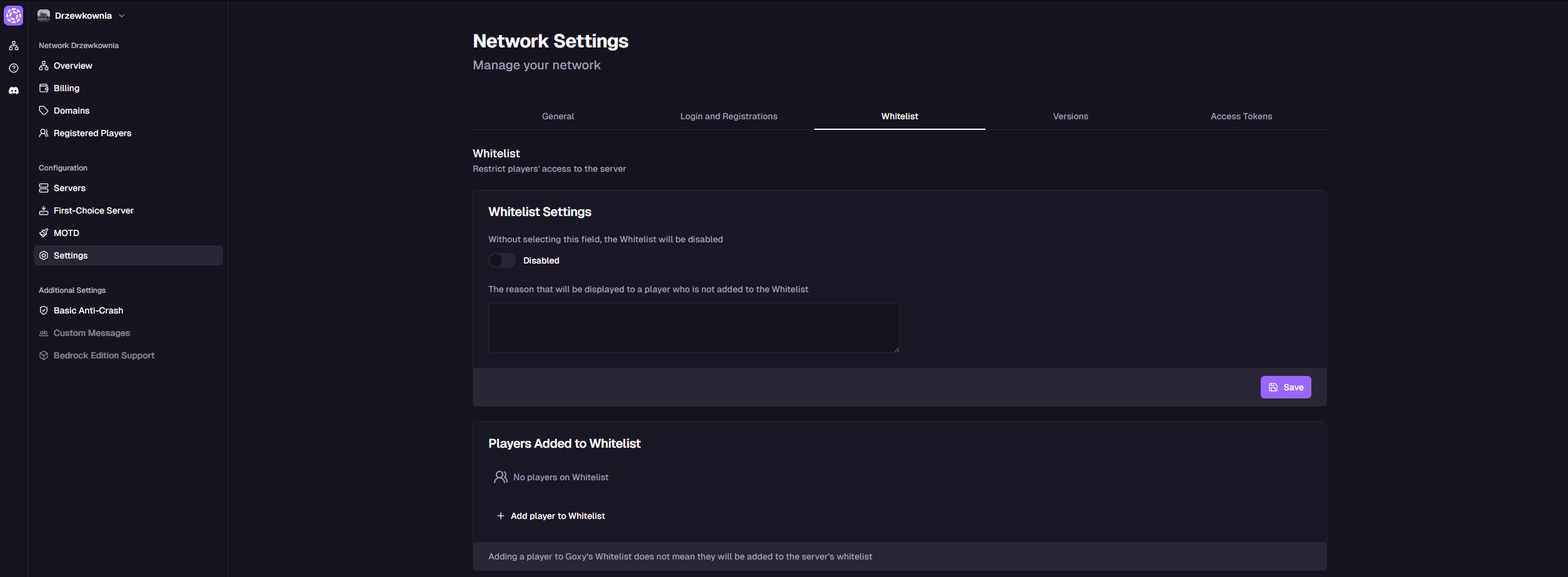
- You'll see the whitelist settings and the list of added players.
Step 2: Enable Whitelist and Set Rejection Message
- In the Whitelist Settings section, check the the box to enable the whitelist.
⚠️Important: Disabling the Whitelist
If unchecked, the whitelist is disabled, and all players can join the network.
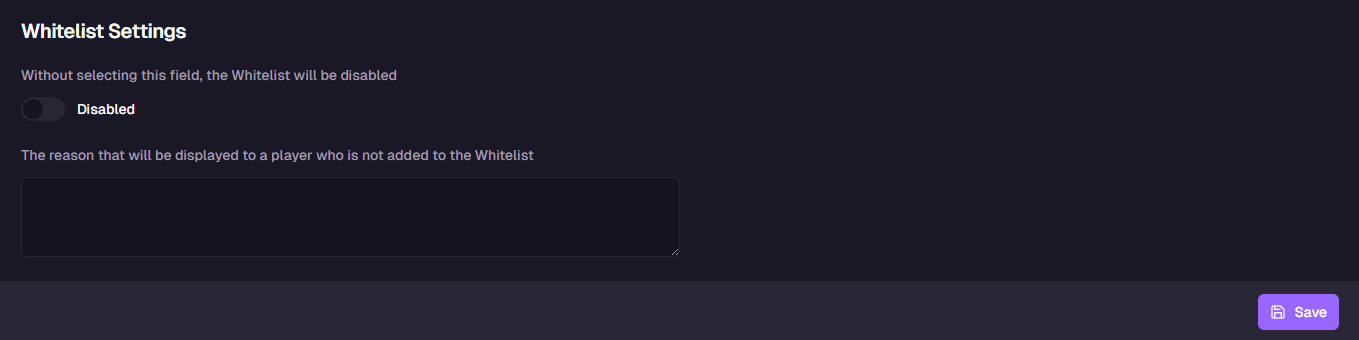
- In the field below, enter the rejection message shown to players not on the whitelist (e.g.,
GOXY.IO). - Click Save.
The whitelist is enabled and the rejection message is set!
Step 3: Manage Players on the Whitelist
-
In the Players on Whitelist section, you'll see the list of players with network access. Example player list:
Player Name Remove goxyio_420 cross 
-
To add a new player, click Add Player to Whitelist.
-
In the Player Name field, enter the player's nickname (e.g.,
pimpek).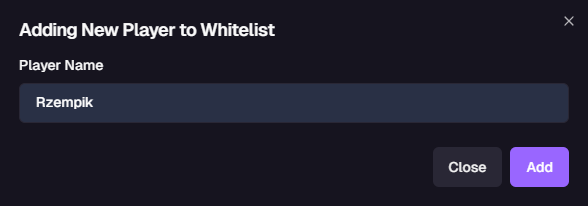 ⚠️Important: Player Name Requirements
Player name can only contain letters, numbers, and underscores (
_). -
Click Add.
The new player is now on the whitelist and can join your network!
Security
The whitelist protects your network from unauthorized access.
Easy Setup
Enable the whitelist and add players in just a few clicks.
Control
Decide exactly who can join your network.
Links
Contact us!
We respond to all messages within 24 hours on Discord.